
Quick Share: File Transfer App
Apps Vista StudioLibraries & Demo
3.126.00 Reviews
- Version
- 1.1.5
- Installs
- 500.00K
- Age Rating
- Everyone
Screenshots
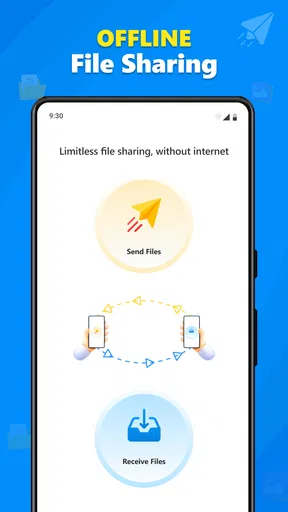
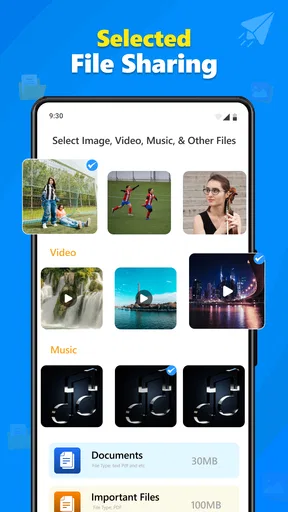
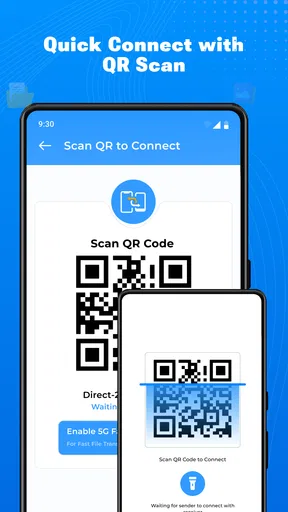
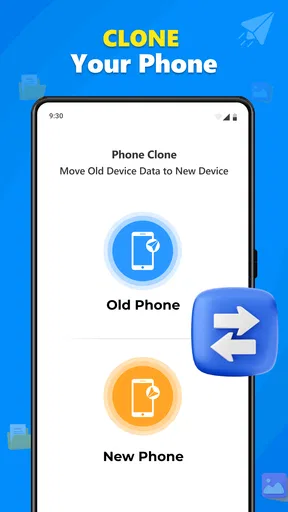
Our Review of Quick Share: File Transfer App
 Analysis by Appyee
Moving files between phones sounds simple until a transfer stalls, a large video loses quality, or a wireless connection becomes confusing. Quick Share: File Transfer App, developed by Apps Vista Studio, is aimed at that everyday problem. It belongs to the Libraries & Demo category, but I found its practical value much closer to a lightweight utility: choose files, connect with another device, and try to get them across without the usual back-and-forth of messaging apps.
My overall impression is mixed but useful. The app is free to install, has an Everyone content rating, and its store summary focuses on fast sharing without data loss and secure data sharing. Those are appealing goals, especially when I need to send photos, videos, documents, or other files directly rather than compressing them through a social platform. At the same time, the experience depends heavily on the conditions around the transfer. A good connection makes the process feel straightforward; a poor one can turn a supposedly quick exchange into a troubleshooting session.
The app currently carries a 3.2 average from around 1.3 thousand ratings, with over 500 thousand installs. That tells me it has attracted a meaningful audience, but it also suggests that expectations may vary considerably from one phone and network environment to another. I tested it with that in mind: not as a magical replacement for every sharing method, but as a focused option for people who regularly move files between nearby mobile devices.
How Quick Share behaves when connectivity matters
When connectivity matters, I judge a transfer by more than whether the phones find each other: I want a clear sense of what arrived and a sensible next step if the session falters. I’ll look at how distance, device readiness, and the choice between a small test and a large batch shape that handoff, then turn to the practical checks that help me trust the result.
The first connection is the real starting point
With a file-transfer tool, the visible buttons are only part of the experience. The more important question is whether two devices can discover each other and maintain a usable connection. Quick Share: File Transfer App makes sense when both people are ready to transfer at the same time and are close enough for the app’s sharing process to work as intended. That makes it particularly suitable for a face-to-face exchange rather than sending something to a person who is elsewhere.
I would approach the first transfer patiently. Keep both phones unlocked, make sure the intended files are easy to find, and avoid beginning with a huge mixed folder. A small test file is a smart first move because it confirms that the receiving phone appears correctly before you commit to a long transfer. This is one of the less obvious habits that can save time: the fastest transfer is often the one where I verify the connection before selecting everything.
The app’s promise of avoiding data loss is important, but I would interpret it carefully. Direct file sharing is generally more appropriate than sending a photo through a service that may resize it, yet the result still depends on selecting the original file and completing the transfer successfully. If image quality matters, I check the file itself on the receiving phone instead of assuming that a completed progress indicator tells the whole story.
A realistic phone-to-phone scenario
Imagine I have taken a group of event photos and want to give them to a friend before we leave. Messaging each image could be slow, and a social platform may alter the files. In that situation, Quick Share is more convenient than creating a conversation, uploading the images, and waiting for the other person to download them. I can select the files while we are together, let the recipient accept the exchange, and then check a few pictures on the second device.
The same workflow works well for a document needed on a colleague’s phone, a video that is too awkward to send through chat, or a collection of files being moved to a replacement device. It is less attractive when the other person is not nearby, when the recipient is not comfortable approving a connection, or when the file is already stored in a shared cloud folder. In those cases, a familiar cloud service may involve fewer steps even if it is not as direct.
Why mobile context changes the result
File transfer rarely happens in a perfect setting. I may be standing in a crowded room, switching between phones, dealing with a weak wireless environment, or trying to finish before a battery runs low. Quick Share is best treated as a focused task rather than something to leave unattended while I use both phones for unrelated work.
For a smoother session, I prepare the sending phone first. I remove duplicate selections, identify the exact folder, and close distractions that could make it harder to notice a connection prompt. On the receiving phone, I keep enough storage available for the incoming files. This matters especially with videos: a transfer can appear to be a connectivity problem when the real obstacle is limited space on the destination device.
Another practical trade-off is selection size. Sending a few files gives me a clear chance to confirm that the devices are communicating. Sending an entire camera folder is convenient only after that smaller test has worked. Large batches also make recovery more frustrating because it is harder to know which files arrived before a disruption.
Where the app fits among familiar alternatives
Compared with email, Quick Share is better suited to files that are too large or too numerous for a clean message attachment. Compared with chat apps, it is more appealing when I want to preserve the original files rather than rely on a platform’s handling of photos and videos. Compared with cloud storage, it feels more immediate for a nearby exchange because I do not need to organize a shared folder or explain a download link.
Cloud storage still wins when the recipient is remote, when several people need access, or when I want a persistent backup rather than a one-time handoff. A cable can be preferable for a long, important migration because it avoids relying on a wireless session that may be interrupted by distance or interference. The app’s strength is therefore not that it replaces every method; it is that it gives nearby mobile sharing a dedicated route.
What happens when a transfer fails
The most important test for any sharing utility is not the perfect transfer but the interrupted one. A connection can break if one phone moves out of range, a screen locks, another wireless activity takes priority, or the user accidentally leaves the transfer flow. When that happens, I do not immediately restart the entire batch. I first check the destination folder and compare the files that are already present with the original selection.
This recovery habit is especially useful with photos. If the first part of a batch arrived, resending everything may create duplicates and make the final folder harder to manage. I prefer to identify the missing items and send a smaller group. That is a concrete workflow advantage even when the app itself does not provide a sophisticated transfer history: careful file selection gives me more control over recovery.
I also recommend testing one file again after a failed session instead of repeatedly tapping the same transfer command. If the small test cannot complete, the problem is probably the connection or device state rather than the size of the original batch. Restarting the sharing attempt with both phones nearby and active can be more productive than adding more files to a failing session.
Users who expect automatic resume behavior should keep their expectations moderate. Quick Share is appealing for direct exchanges, but a transfer tool is only as comfortable as its interruption handling. For valuable work files or a full device migration, I would keep the originals untouched until I have opened the transferred copies and confirmed that the important items are present.
Using it without wasting mobile data
Connectivity also affects cost. A person may assume that a nearby transfer is automatically harmless to a mobile plan, but the exact path used by a sharing app can depend on the devices and their available connections. I would avoid starting a large exchange while relying on limited cellular data unless I understand how the phones are connected. For a data-conscious routine, I prepare the transfer when both devices have a stable local connection and avoid repeating failed attempts blindly.
This is another reason to begin with a small sample. It reduces the chance of spending data on a batch that was never going to complete and helps reveal whether the devices recognize each other properly. For videos, I check whether I really need the original file or whether a smaller copy is sufficient. That decision is not a criticism of Quick Share; it is a sensible way to match the transfer to the available connection and storage.
Security deserves the same practical attention. The app presents itself as a secure data-sharing option, but I still treat the recipient confirmation as an important part of the process. I do not approve an unfamiliar device, and I avoid transferring sensitive documents in a crowded setting where I cannot clearly see which phone is receiving them. Direct sharing reduces some of the exposure involved in public links, but user attention remains essential.
Who will appreciate the app most
I can recommend Quick Share to people who frequently exchange files with someone nearby and want an alternative to chat attachments. Students passing a project folder between phones, families sharing original photos, and coworkers moving a document during an in-person meeting are the clearest audiences. It is also useful for someone who dislikes creating temporary cloud folders for a simple one-time handoff.
The app is less suitable for people who mainly share files across different locations. If the recipient is at home, overseas, or on another schedule, cloud storage or a conventional messaging service may be more convenient. I would also steer away from making it the only method for a major backup. A dedicated backup system provides a different kind of protection, while this app is primarily about getting selected files from one mobile device to another.
Beginners can use it, but they should not rush through connection prompts. The Everyone rating makes the app broadly accessible, yet accessibility does not remove the need to understand which device is sending and which is receiving. A short test transfer is worthwhile for anyone unfamiliar with wireless file sharing.
Version, cost, and the practical value proposition
The current release is version 1.0.9, and the app is free to download. That makes it easy to try before deciding whether it fits a regular sharing routine. There are in-app purchases ranging from $1.99 to $14.99 per item, so I would review any optional purchase screen carefully and avoid assuming that every capability belongs to the free experience.
For me, the free entry point is the main reason to experiment with it. I can judge the connection process on my own phones and see whether it handles the file types and everyday situations I care about. The purchase range means the long-term value depends on what the optional items provide and how often I transfer files. Someone who only needs occasional nearby sharing may find the free option sufficient, while a frequent user should consider whether the paid elements genuinely remove friction rather than simply adding convenience.
The minimum operating-system requirement is Android 7.0, which gives the app a reasonably broad starting point for compatible Android devices. Even so, compatibility on paper does not guarantee identical behavior across phones. Wireless hardware, manufacturer settings, background restrictions, storage space, and the local environment can all influence the experience. I would test it on the actual devices involved rather than judging it solely by the operating-system requirement.
Small habits that make a noticeable difference
My first tip is to create a temporary “send” selection instead of sharing directly from a cluttered gallery. That reduces accidental transfers and makes it easier to repeat only the missing files after an interruption. My second is to rename ambiguous documents before sending them. A clear filename is more valuable than it sounds when several versions arrive on the receiving phone.
My third tip is to verify the destination immediately. Open a few transferred photos, play a video from the beginning and near the end, and check that a document opens correctly. This is particularly important when the transfer is being used to free space on the original phone. Deleting the source before checking the copy turns a minor connectivity problem into a serious recovery problem.
Finally, I avoid treating speed as the only measure of success. A slightly slower transfer that preserves the original files and arrives in an organized folder is more useful than a fast exchange that creates duplicates or leaves me uncertain about what completed. Quick Share works best when I combine its direct approach with deliberate file management.
My connectivity verdict
Quick Share: File Transfer App is a sensible tool for a specific job: nearby file exchange between mobile devices. I like its focus on direct sharing, its free starting point, and its suitability for original photos, videos, and documents that are awkward to pass through ordinary chat. Apps Vista Studio has positioned it around speed, data preservation, and secure sharing, and those priorities match real problems I face when two people need the same files immediately.
Its weaknesses are tied to the same design space. The experience is not independent of connectivity, distance, device behavior, or user attention. A failed session can require manual checking and a smaller retry, and the app is not my first choice for remote collaboration, dependable long-term backup, or a large migration where a cable or cloud service offers clearer recovery.
My recommendation is straightforward: try it for nearby transfers, begin with a small test, and verify the received files before deleting anything. If that workflow matches your routine, the app can be a handy alternative to compressed chat attachments. If your sharing needs are mostly remote or backup-oriented, another option will probably serve you better. Its 3.2 average reflects a product worth testing rather than blindly trusting, and my experience places it in that same middle ground: useful when the connection and situation are right, but not a universal answer to file management.
For readers who want a simple mobile utility and are comfortable paying attention during the connection process, Quick Share: File Transfer App is worth a trial. I would keep a second sharing method available, especially for important files, but I can see myself returning to this app when a friend is beside me and the goal is to move the original files without turning the exchange into a long cloud-storage project.
Privacy and Permissions
See what permissions an app requests and how it handles your data.
- Contacts
- read your contacts
- Location
- approximate location (network-based), precise location (GPS and network-based)
- Photos/Media/Files
- read the contents of your USB storage, modify or delete the contents of your USB storage
- Storage
- read the contents of your USB storage, modify or delete the contents of your USB storage
- Camera
- take pictures and videos
- Wi-Fi connection information
- view Wi-Fi connections
- Other
- view network connections, change network connectivity, allow Wi-Fi Multicast reception, connect and disconnect from Wi-Fi, full network access, control vibration, prevent device from sleeping, modify system settings, Google Play license check
Verdict
Strengths of Quick Share: File Transfer App
- Transfers photos, videos, and documents quickly between nearby devices.
- Simple interface makes selecting files and starting transfers easy.
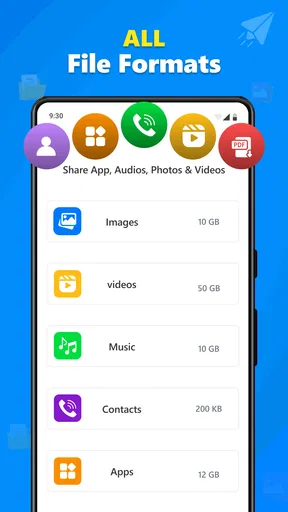
- Supports multiple file types without requiring cloud storage.
- Useful for sharing large files without using mobile data.
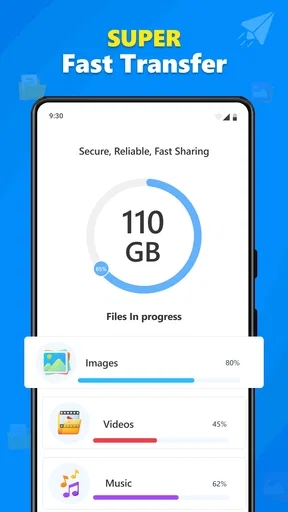
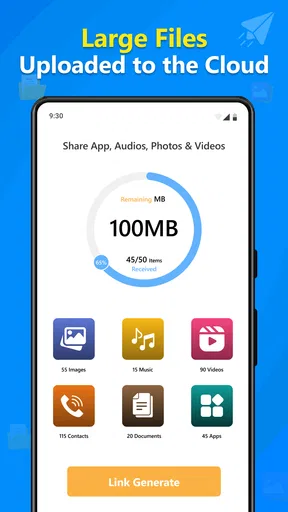
- Transfer progress is clearly shown during file sharing.
Limitations of Quick Share: File Transfer App
- Both devices may need the app installed for reliable transfers.
- Transfer speed can drop with distance or wireless interference.
- The app may request broad storage and nearby-device permissions.
- Large transfers can consume considerable battery power.
- Compatibility may vary across different Android and iOS devices.
Similar Picks in This Category
View All
PGT: GFX, Launcher & Optimizer
Trilokia Inc.4.5

AusweisApp Bund
Governikus Service GmbH3.7

Cardboard
Google LLC3.2

Gamers GLTool with Game Tuner
Trilokia Inc.4.5

Multi Web Chat - Read Secretly
World Scan & Cleaner3.8

App Cloner Premium & Add-ons
App Listo1.9
Frequently Asked Questions
What is Quick Share: File Transfer App used for?
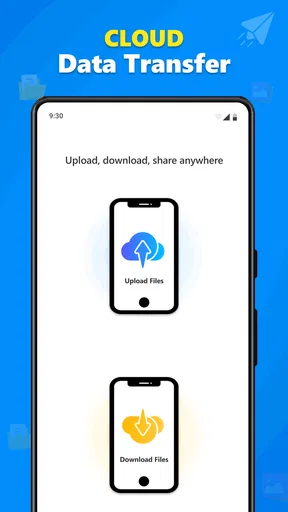
Quick Share: File Transfer App is designed to help users send photos, videos, documents, music, and other files between compatible devices. It generally focuses on direct sharing rather than uploading files to a cloud service, making it useful when you want to transfer content quickly without relying on email attachments, messaging limits, or removable storage.
Does Quick Share: File Transfer App require an internet connection?
The app may use Wi-Fi, Wi-Fi Direct, Bluetooth, or a local hotspot to establish a connection between devices, depending on the phone models and operating systems involved. In many cases, both devices do not need mobile data or an active internet connection. However, connection methods and available features can vary, so users should check the app’s permissions and compatibility before transferring important files.
Which devices and file types are supported?
Quick Share: File Transfer App is intended for use with modern Android and, where supported by the app, iOS devices. Compatibility can depend on the operating-system version, wireless hardware, and whether the companion app is installed on both devices. Commonly supported content includes images, videos, audio files, documents, and folders, although maximum file sizes and transfer limitations may apply.
Is Quick Share: File Transfer App safe and private to use?
Before using the app, review the permissions it requests, particularly access to files, photos, nearby devices, Bluetooth, Wi-Fi, and location services. Transfers should only be accepted from devices you recognize, and sharing should be stopped when finished. The app may not provide the same privacy model as encrypted cloud storage, so avoid sending sensitive documents over unknown networks or to unverified recipients.
Are there advertisements, in-app purchases, or transfer limitations?
The availability of advertisements, premium features, subscription options, and transfer limits can depend on the app version and the platform where it was downloaded. Some versions may restrict advanced sharing tools, remove advertising, or impose limits on file size or simultaneous transfers. Check the store listing and the in-app purchase section before downloading if cost or unrestricted use is important to you.
